Login Troubleshooting
Cinnamon’s Guide to Accessing the Platform
In this guide, you will find detailed information about resetting your password and setting up Multi-factor Authentication.
How to Reset your Cinnamon Password
Hey, we've all done it. Passwords are supposed to be complicated! Whether it’s time to set up a new password or you forgot your old one, this guide will help you with navigating all things password-related.
We have a few things to note before we continue.
- Cinnamon is a web-based application.
- Access to Cinnamon requires two-factor authentication. We recommend Google Authenticator, though any TOTP app (Authy, 1Password, Microsoft Authenticator) works.
- For any questions or issues getting access to Cinnamon, please contact support@cinnamon.health.
Password Reset
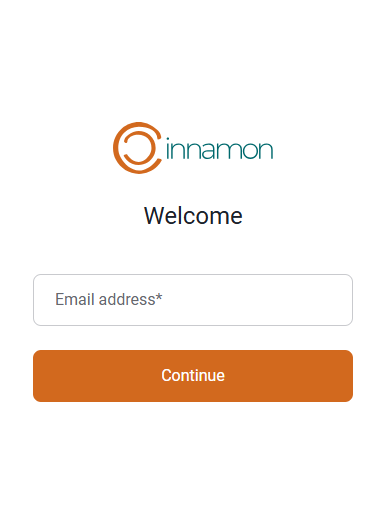
Step 1: Visit app.cinnamon.health. Enter the email address tied to your Cinnamon account and hit the “Continue” button.
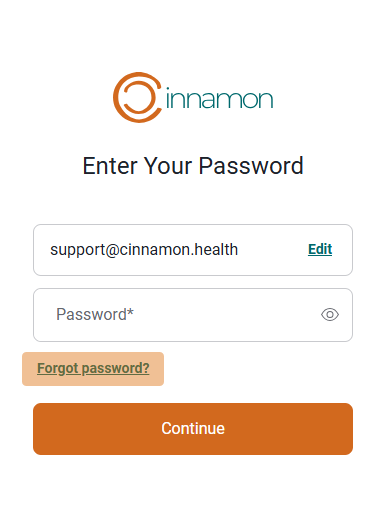
Step 2: Click on “Forgot Password”
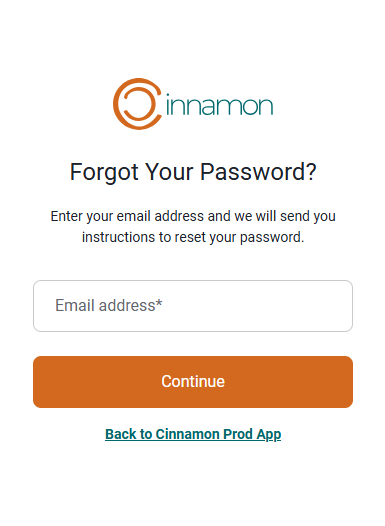
Step 3: Enter the email address tied to your Cinnamon account and hit “Continue”
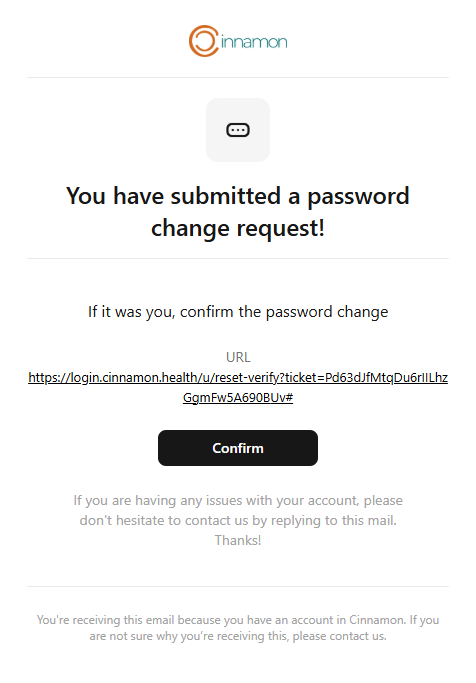
Step 4: You’ll receive an email to the email address tied to your Cinnamon account with instructions on how to reset your password. Click the “Confirm” button within the email.
If you do not see this email, please be sure to check your spam folder.
Step 5: Enter new desired password and hit the “Reset Password” button.
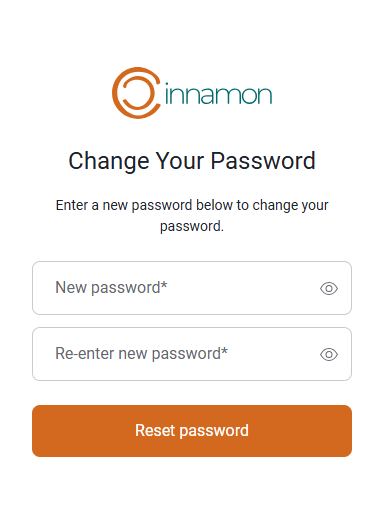
Please note, your password must contain the following:
- At least 12 characters
- At least 3 of the following:
- Lower case letters (a-z)
- Upper case letters (A-Z)
- Numbers (0-9)
- Special characters (e.g. !@#$%^&*)
Step 6: If a password meeting all the above criteria has been entered, you will receive this message.
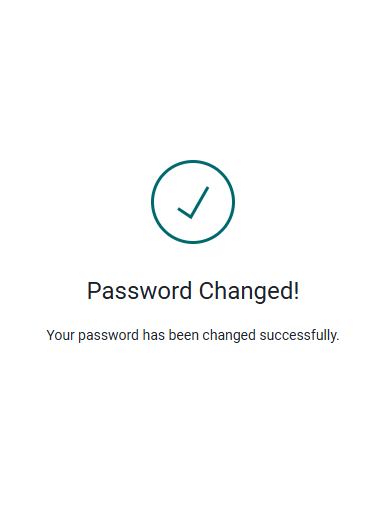
Step 7: Congrats!
You’ve successfully updated your password. Return to the Cinnamon App and enter your email and new password.
Contact Us: The Cinnamon Support team cannot reset your password for you. However, if you run into any other issues with your password please reach out to the team via support@cinnamon.health
Multi-Factor Authentication
Multi-Factor Authentication (MFA for short) is a great way to add an extra layer of security to your Cinnamon account and is required to help you stay in control of logging in.
While there are many different types of MFA, Cinnamon uses an established industry standard, Time-based One-Time Password (TOTP), for MFA. This is managed using an Authenticator App (like Google Authenticator).
Using MFA to login to Cinnamon
Step 1: Go to app.cinnamon.health and log in with your new password. Upon successful login, you will be prompted to activate MFA.
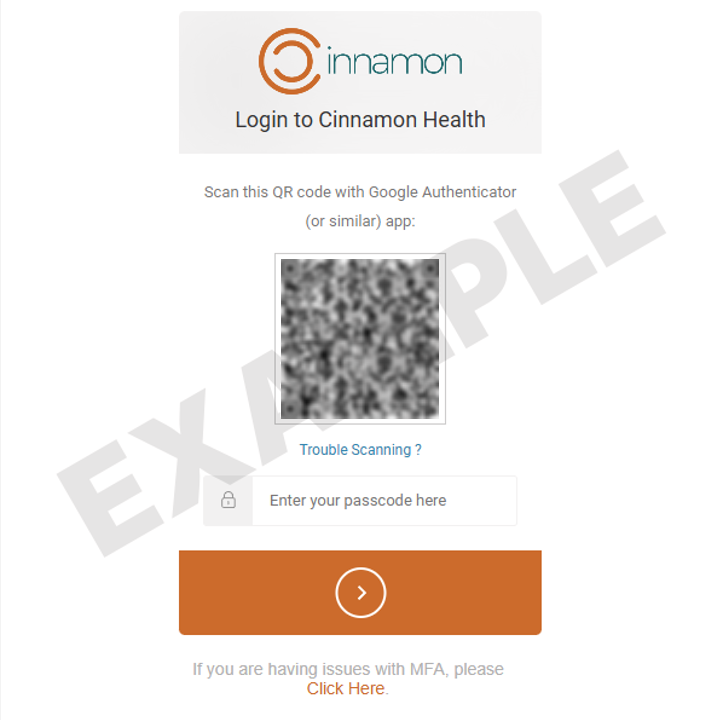
Step 2: On your mobile device, download the Google Authenticator app from the App Store (iOS) or Google Play Store (Android).
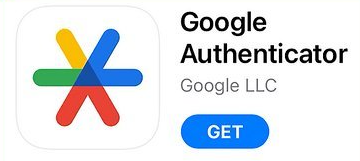
Step 3: Open the Google Authenticator app. Tap on “Use Authenticator App without an account”. Click the button in the middle of the page to open the QR code scanner.
Step 4: Scan the QR code displayed on the Cinnamon website using the Google Authenticator app.
Step 5: Use the 6-digit code displayed in the Google Authenticator app to complete the MFA setup on the website. (Note: The app will generate a new code every 30 seconds).
Step 6: Congrats! You’ve successfully logged in. The next time you log in, you will have an option to remember your device for 14 days.
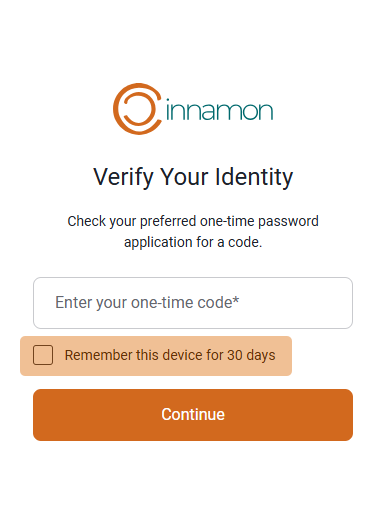
The Cinnamon Support Team cannot log in for you. If you encounter any issues during the setup process, please email support@cinnamon.health. The Support Team can reset the MFA process for you.
If at any point, you’ve lost or replaced the device that is registered to your account, please contact the Cinnamon Support Team so we can reset your MFA for you.